
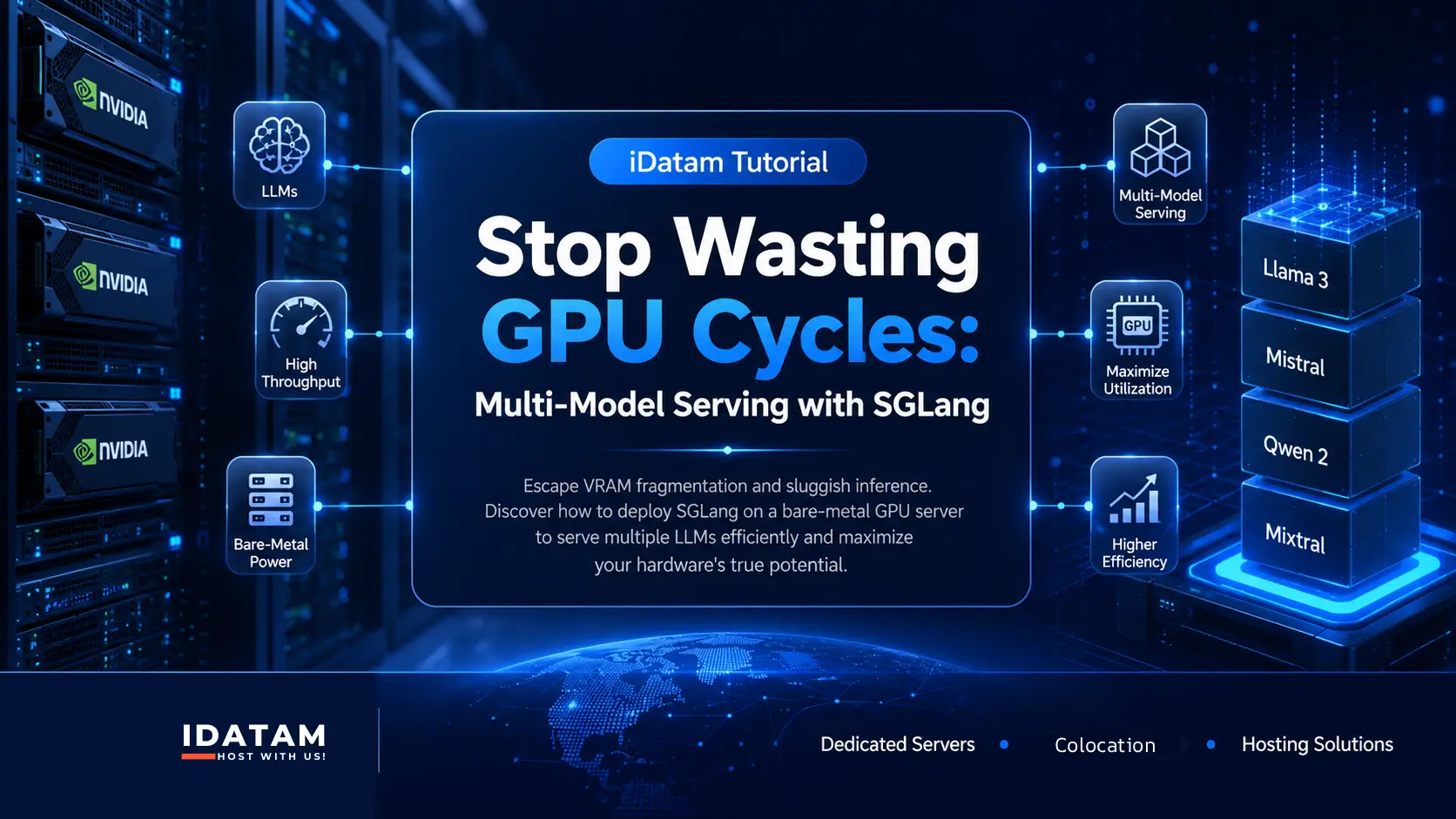
If you are running enterprise AI applications in production, you already know the brutal reality of Large Language Model (LLM) hosting: VRAM is your most expensive and scarce resource. When you try to spin up multiple models on a single machine—perhaps a Llama-3-8B for summarization and a Mixtral-8x7B for complex reasoning—you inevitably hit the wall.
Standard inference engines often lead to severe VRAM fragmentation. They isolate models, duplicate context caches, and struggle to allocate memory dynamically. The result? Out of Memory (OOM) errors, idle GPU compute cycles, and devastatingly slow time-to-first-token (TTFT).
Enter SGLang. Built with RadixAttention, SGLang acts as a highly optimized alternative to vLLM, specifically designed to share VRAM efficiently, manage the KV cache intelligently, and radically improve multi-model throughput. In this guide, we are going to ditch the cloud API tax and deploy a high-performance SGLang inference server directly on bare-metal hardware.
What You'll Learn
The VRAM Fragmentation Trap
Why SGLang? (Understanding RadixAttention)
Step 1: Bare Metal Hardware Prerequisites
Step 2: Preparing the NVIDIA Docker Environment
Step 3: Deploying the SGLang Server
Step 4: Multi-Model Routing and Inference
Step 5: Performance Tuning and Benchmarking
The VRAM Fragmentation Trap
When you run multiple inference servers on a single GPU node (for instance, using standard Hugging Face transformers or even multiple instances of vLLM), each process reserves its own block of VRAM for model weights and KV caching.
Because these processes do not communicate, memory becomes fragmented. One model might be sitting idle while hoarding 20GB of reserved VRAM, while another model is crashing due to an OOM error because it needs 2GB more to process a massive context window. This isolation destroys your server's ROI. You are paying for 100% of the GPU, but utilizing perhaps 40% of its potential efficiency.
Why SGLang? (Understanding RadixAttention)
SGLang (Structured Generation Language) was engineered to solve the exact bottlenecks found in traditional inference servers. While vLLM introduced PagedAttention to reduce memory waste within a single model's generation, SGLang introduces RadixAttention.
RadixAttention automatically maintains an LRU (Least Recently Used) cache of the KV cache using a radix tree structure. This means if multiple users (or agents) are prompting your models with similar system prompts, few-shot examples, or context history, SGLang instantly reuses the cached attention states. It significantly reduces memory usage and massively accelerates TTFT. When paired with its lightweight router, SGLang allows you to multiplex queries across multiple models with minimal VRAM overhead.
Step 1: Bare Metal Hardware Prerequisites
To achieve the throughput we are aiming for, you cannot rely on shared VPS instances or hypervisor-throttled cloud instances. You need direct, unshared access to the PCIe lanes connecting your CPU, RAM, and GPUs.
For optimal multi-model serving, we recommend using iDatam dedicated servers, configured with at least:
-
OS: Ubuntu 24.04 LTS (or 22.04 LTS).
-
GPU: Minimum 1x NVIDIA RTX 3090/4090 (24GB) for smaller models, or multi-A100/H100 setups for enterprise workloads.
-
Storage: PCIe Gen 4 or Gen 5 NVMe SSDs (Crucial for loading massive
.safetensorsfiles into VRAM quickly). -
RAM: At least 2x your total GPU VRAM (e.g., if you have 48GB VRAM, ensure 96GB+ of System RAM).
Step 2: Preparing the NVIDIA Docker Environment
We will deploy SGLang using Docker. This prevents Python dependency hell and ensures our environment exactly matches the optimized CUDA runtimes provided by the SGLang developers.
First, update your bare metal server and install the fundamental dependencies:
sudo apt update && sudo apt upgrade -y
sudo apt install -y curl git jq build-essential
Next, install Docker and the NVIDIA Container Toolkit. This toolkit bridges your physical GPUs to your Docker containers.
# Add Docker's official GPG key and repository
curl -fsSL https://download.docker.com/linux/ubuntu/gpg | sudo gpg --dearmor -o /usr/share/keyrings/docker-archive-keyring.gpg
echo "deb [arch=$(dpkg --print-architecture) signed-by=/usr/share/keyrings/docker-archive-keyring.gpg] https://download.docker.com/linux/ubuntu $(lsb_release -cs) stable" | sudo tee /etc/apt/sources.list.d/docker.list > /dev/null

# Install Docker
sudo apt update
sudo apt install -y docker-ce docker-ce-cli containerd.io

# Install NVIDIA Container Toolkit
curl -fsSL https://nvidia.github.io/libnvidia-container/gpgkey | sudo gpg --dearmor -o /usr/share/keyrings/nvidia-container-toolkit-keyring.gpg
curl -s -L https://nvidia.github.io/libnvidia-container/stable/deb/nvidia-container-toolkit.list | \
  sed 's#deb https://#deb [signed-by=/usr/share/keyrings/nvidia-container-toolkit-keyring.gpg] https://#g' | \
  sudo tee /etc/apt/sources.list.d/nvidia-container-toolkit.list

sudo apt update
sudo apt install -y nvidia-container-toolkit
sudo nvidia-ctk runtime configure --runtime=docker
sudo systemctl restart docker
Verify that Docker can see your GPUs:
sudo docker run --rm --runtime=nvidia --gpus all ubuntu nvidia-smi
If you see your GPU listed in the output table, your infrastructure is ready.
Step 3: Deploying the SGLang Server
To serve models, we need to download them. We will create a local directory on our high-speed NVMe drive to store the Hugging Face models so that the Docker container can access them without re-downloading them every time it restarts.
mkdir -p /mnt/nvme/huggingface_cache
export HF_HOME=/mnt/nvme/huggingface_cache
Now, let's spin up the SGLang container. For this tutorial, we will use meta-llama/Meta-Llama-3-8B-Instruct. Note: You will need to pass your Hugging Face token if you are using gated models.
# Replace YOUR_HF_TOKEN with your actual token
export HF_TOKEN="hf_your_token_here"

sudo docker run -d \
  --name sglang-server \
  --gpus all \
  --shm-size 16g \
  -p 30000:30000 \
  -v /mnt/nvme/huggingface_cache:/root/.cache/huggingface \
  -e HF_TOKEN=$HF_TOKEN \
  lmsysorg/sglang:latest \
  python3 -m sglang.launch_server \
  --model-path meta-llama/Meta-Llama-3-8B-Instruct \
  --port 30000 \
  --host 0.0.0.0
Understanding the flags:
-
--shm-size 16g: Shared memory allocation. LLM inference requires a large shared memory pool for tensor operations. Never leave this at the Docker default (64MB) or your server will crash. -
-p 30000:30000: Maps the internal SGLang API port to your server's external port. -
--model-path: The Hugging Face repo ID.
Check the logs to ensure the model loaded successfully into VRAM:
sudo docker logs -f sglang-server
Step 4: Multi-Model Routing and Inference
SGLang truly shines when you need to run complex logic, structured JSON generation, or multi-model queries. Let's write a Python script on our host machine to interact with the SGLang server.
First, install the SGLang client library locally:
pip install sglang
Create a file named inference_test.py:
import sglang as sgl

# Connect to the SGLang server we just deployed
sgl.set_default_backend(sgl.RuntimeEndpoint("http://localhost:30000"))

@sgl.function
def text_summarizer(s, text):
    s += sgl.system("You are an expert summarizer. Be concise.")
    s += sgl.user(f"Summarize this text in 3 bullet points: {text}")
    s += sgl.assistant(sgl.gen("summary", max_tokens=150))

text_to_summarize = """
Large Language Models (LLMs) have revolutionized artificial intelligence.
However, deploying them in production remains a challenge due to high hardware
costs and memory bottlenecks. Frameworks like SGLang utilize advanced techniques
like RadixAttention to manage the Key-Value (KV) cache more efficiently,
allowing servers to handle higher concurrency and multiple models without
running out of memory.
"""

# Execute the function
state = text_summarizer.run(text=text_to_summarize)

print("Output:")
print(state["summary"])
Run the script:
python3 inference_test.py
Because of RadixAttention, if you run this script multiple times with the exact same system prompt, SGLang will not recompute the attention weights for the system prompt. It retrieves them directly from the radix tree, drastically reducing latency for repetitive API calls.
Step 5: Performance Tuning and Benchmarking
To squeeze every drop of performance out of your bare-metal setup, you need to tune the KV cache and memory allocation. By default, inference engines are conservative with memory.
If you are running a dedicated GPU server solely for inference, you can instruct SGLang to utilize a larger percentage of your VRAM for the KV cache. This is done by appending the --mem-fraction-static flag during server launch.
# Stop the current container
sudo docker stop sglang-server && sudo docker rm sglang-server

# Relaunch with aggressive memory settings
sudo docker run -d \
  --name sglang-server \
  --gpus all \
  --shm-size 16g \
  -p 30000:30000 \
  -v /mnt/nvme/huggingface_cache:/root/.cache/huggingface \
  -e HF_TOKEN=$HF_TOKEN \
  lmsysorg/sglang:latest \
  python3 -m sglang.launch_server \
  --model-path meta-llama/Meta-Llama-3-8B-Instruct \
  --port 30000 \
  --host 0.0.0.0 \
  --mem-fraction-static 0.85
By setting --mem-fraction-static 0.85, we explicitly tell SGLang to dedicate 85% of the total GPU VRAM to the model weights and the KV cache tree. This prevents random OOM crashes during sudden spikes in concurrent user requests, ensuring the server rejects requests gracefully rather than crashing the Linux kernel's OOM killer.
Conclusion
You have successfully bypassed the limitations of traditional inference engines. By migrating from heavy, unoptimized API endpoints to a bare-metal deployment of SGLang, you have eliminated VRAM fragmentation and unlocked lightning-fast RadixAttention caching.
When you control the hardware and the software stack, you stop paying the "cloud convenience tax." You can now serve multiple open-source models, scale your context windows efficiently, and handle massive concurrent traffic without breaking a sweat.
iDatam Recommended Tutorials

Dedicated Server, Ubuntu
Deploy PyTorch & CUDA on Ubuntu GPU Servers
Learn how to install NVIDIA drivers, CUDA, and PyTorch on a fresh Ubuntu bare-metal server. Build a high-performance deep learning environment in minutes.


Dedicated Server, Api
Deploy a Production LLM API (vLLM) on GPU Servers
Learn how to deploy a production-ready LLM API using vLLM and Docker on a GPU dedicated server. Host Llama-3 locally for secure, private AI inference.
Dedicated Server, Gpu
How to Configure Multi-Node GPU Cluster for Distributed LLM Training
Learn how to scale your AI workloads by configuring a multi-node GPU cluster for distributed LLM training using Ray on bare-metal dedicated servers.
Discover iDatam Dedicated Server Locations
iDatam servers are available around the world, providing diverse options for hosting websites. Each region offers unique advantages, making it easier to choose a location that best suits your specific hosting needs.
