
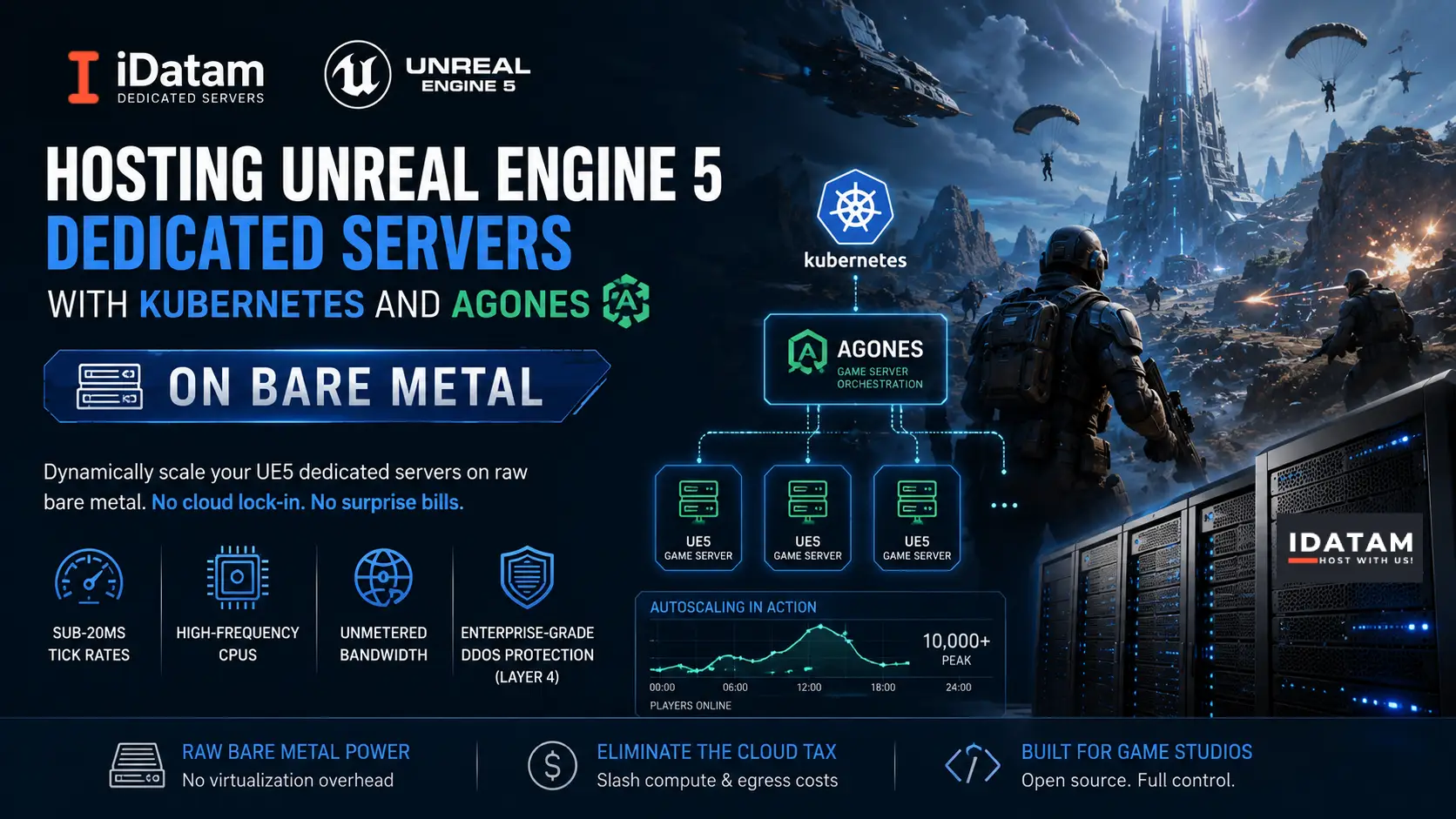
For modern multiplayer games—whether you are building a massive Battle Royale, an extraction shooter, or a co-op survival experience in Unreal Engine 5—static server hosting no longer cuts it. When 10,000 players log in simultaneously after a major content update, your infrastructure must dynamically spin up hundreds of new game server instances in seconds. When the player count drops at 3 AM, it needs to spin them down just as fast.
Historically, indie studios and AA developers had to rely on hyper-expensive managed cloud services (like Amazon GameLift or Google Cloud) to achieve this dynamic scaling. The compute costs and data egress fees alone are enough to bankrupt a growing studio.
The 2026 solution is Agones. Originally developed by Google and Ubisoft, Agones is an open-source, Kubernetes-native platform for orchestrating dedicated game servers. While most documentation assumes you are deploying Agones on GKE (Google Kubernetes Engine), this guide will show you how to deploy it on a raw, bare-metal Kubernetes cluster.
By pairing Agones with an iDatam Game Server, you eliminate the "cloud tax" and gain access to high-frequency CPUs, unmetered bandwidth, and enterprise-grade hardware DDoS protection—ensuring your players get sub-20ms tick rates without the matching engines crashing under a Layer 4 flood attack.
What You'll Learn
Step 1: Provision Bare-Metal Kubernetes (K3s)
Step 2: Install Helm and Deploy Agones
Step 3: Containerizing Your UE5 Dedicated Server
Step 4: Create an Agones Fleet
Step 5: Verify the Game Servers
Conclusion: Scale Your Game, Not Your Budget
Step 1: Provision Bare-Metal Kubernetes (K3s)
To run Agones, we first need a Kubernetes cluster. For a bare-metal dedicated server, installing full upstream Kubernetes can be overly complex and resource-heavy. Instead, we will use K3s, a highly optimized, lightweight, and production-ready Kubernetes distribution.
Log into your fresh Ubuntu 24.04 LTS dedicated server via SSH and run the K3s installation script:
curl -sfL https://get.k3s.io | sh -
Configure your kubectl environment so you can interact with the cluster:
mkdir -p ~/.kube
sudo cp /etc/rancher/k3s/k3s.yaml ~/.kube/config
sudo chown $(id -u):$(id -g) ~/.kube/config
export KUBECONFIG=~/.kube/config
Verify that your single-node cluster is online and Ready:
kubectl get nodes
Step 2: Install Helm and Deploy Agones
Agones is installed via Helm, the package manager for Kubernetes. First, install Helm:
curl https://raw.githubusercontent.com/helm/helm/main/scripts/get-helm-3 | bash
Next, add the official Agones Helm repository and update your local chart cache:
helm repo add agones https://agones.dev/chart/stable
helm repo update
Now, install Agones into a dedicated Kubernetes namespace. We will set the gameservers.namespaces parameter so Agones knows where to look for your UE5 instances:
kubectl create namespace agones-system
helm install my-release --namespace agones-system --set agones.ping.http.expose=false --set agones.ping.udp.expose=false agones/agones
Verify the Agones controller is running:
kubectl get pods --namespace agones-system
(You should see agones-controller, agones-allocator, and agones-extensions all in a Running state).
Step 3: Containerizing Your UE5 Dedicated Server
Before Agones can scale your game, your Unreal Engine 5 dedicated server must be packaged as a Linux Docker container.
While a full UE5 cross-compilation tutorial requires its own article, the high-level workflow is:
-
Package your UE5 project for Linux (Server build).
-
Write a Dockerfile that uses a lightweight base image (like
ubuntu:22.04). -
Integrate the Agones SDK into your UE5 C++ code so the game server can tell Kubernetes when it is "Ready" for players, and when it is "Shutting Down."
-
Build and push the image to a container registry (e.g., Docker Hub, GitHub Container Registry).
A simplified Dockerfile looks like this:
FROM ubuntu:22.04
RUN useradd -m ue5
USER ue5
WORKDIR /home/ue5

# Copy your packaged UE5 Linux Server files
COPY --chown=ue5:ue5 ./LinuxServer/ ./
RUN chmod +x ./MyGameServer.sh

# Expose the default UE5 UDP port
EXPOSE 7777/udp
ENTRYPOINT ["./MyGameServer.sh", "-log"]
Step 4: Create an Agones Fleet
A Fleet is an Agones concept that manages a pool of warm, ready-to-play game servers. Instead of starting a server from scratch when a player clicks "Matchmake" (which takes seconds), a Fleet ensures X number of servers are always running and waiting in the background.
Create a file named ue5-fleet.yaml:
nano ue5-fleet.yaml
Paste the following configuration (replace your-registry/ue5-server:latest with your actual Docker image):
apiVersion: "agones.dev/v1"
kind: Fleet
metadata:
  name: ue5-fleet
spec:
  replicas: 5 # Always keep 5 servers warm and ready
  template:
    spec:
      ports:
      - name: default
        portPolicy: Dynamic # Agones will dynamically assign a host port
        containerPort: 7777 # The internal port your UE5 server binds to
      template:
        spec:
          containers:
          - name: ue5-server
            image: your-registry/ue5-server:latest
            resources:
              requests:
                memory: "2Gi"
                cpu: "1000m"
              limits:
                memory: "4Gi"
                cpu: "2000m"
Apply the Fleet configuration to your Kubernetes cluster:
kubectl apply -f ue5-fleet.yaml
Step 5: Verify the Game Servers
Within moments, Agones will spin up 5 identical instances of your UE5 dedicated server.
Check the status of your GameServers:
kubectl get gs
The output will list the 5 servers, their STATE (which should transition from Starting to Ready), and the exact ADDRESS and PORT that players can connect to.
When your custom matchmaking service needs a server for a new lobby, it simply asks the Agones Allocator API for a server. Agones changes that server's state to Allocated, gives the IP and Port to the players, and automatically spins up a new Ready server to replace it in the Fleet.
Conclusion: Scale Your Game, Not Your Budget
By combining the orchestration power of Kubernetes and Agones with raw bare-metal hardware, you have built a world-class backend capable of supporting millions of players dynamically—without the crushing per-minute compute costs of the public cloud.
However, in multiplayer gaming, compute is only half the battle. If a single disgruntled player targets your host node with a UDP flood, your entire Kubernetes cluster could go offline.
When you deploy your Agones fleet on iDatam’s DDoS Dedicated Servers, you secure your infrastructure at the hardware layer. Our edge-scrubbing centers instantly filter out volumetric Layer 3/4 attacks before they ever reach your nodes, ensuring your Unreal Engine 5 matches remain perfectly synchronized, and your players stay in the game.
iDatam Recommended Tutorials

Control Panel
How to Fix Invalid cPanel License Error?
Find out how to fix the Invalid cPanel License error with this step-by-step guide. Resolve licensing issues quickly and get your hosting control panel back on track.


Control Panel
How to Install and Use JetBackup in cPanel
Learn how to install and use JetBackup in cPanel with this step-by-step tutorial. Discover how to back up and restore accounts, files, databases, and more efficiently.

Network
Remote Desktop Can’t Connect To The Remote Computer [Solved]
Learn how to fix the Remote Desktop can't connect to the remote computer error. Discover common causes such as network problems, Windows updates, and firewall restrictions, along with step-by-step solutions to resolve the issue and restore your remote desktop connection.
Discover iDatam Dedicated Server Locations
iDatam servers are available around the world, providing diverse options for hosting websites. Each region offers unique advantages, making it easier to choose a location that best suits your specific hosting needs.
