
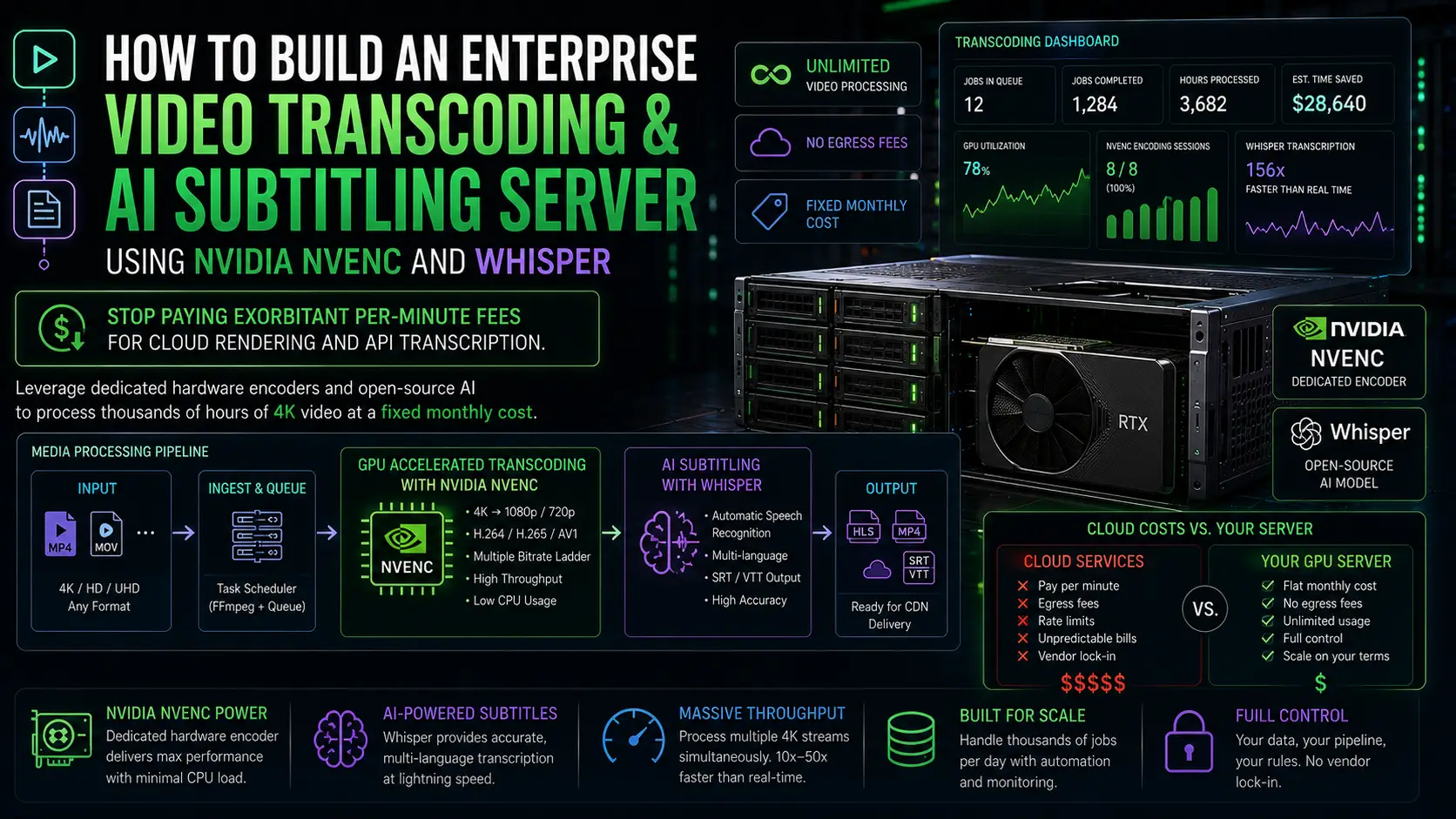
If you run a streaming startup, an e-learning platform, or a media agency in 2026, video processing is likely destroying your cloud budget. Services like AWS MediaConvert or managed AI transcription APIs charge you by the minute. When you are processing hundreds of hours of 4K user-generated content daily—compressing it for web delivery and generating multi-language subtitles—those per-minute fees quickly escalate into tens of thousands of dollars.
The industry secret is that you don't need the cloud to do this. Modern NVIDIA data center GPUs (like the ADA Lovelace or Hopper architectures) feature dedicated silicon called NVENC (NVIDIA Encoder). NVENC is separate from the CUDA cores used for AI; it is built specifically to encode video at blistering speeds without taxing the main CPU.
By pairing NVENC with OpenAI’s open-source Whisper model on an iDatam GPU Dedicated Server, you can build an automated, high-volume media pipeline that completely replaces managed cloud services. You pay a flat monthly rate for the raw metal, process unlimited video, and never pay an egress fee when delivering those files to your CDN.
What You'll Learn
Step 1: Install FFmpeg with NVIDIA Hardware Acceleration
Step 2: High-Speed 4K Hardware Transcoding
Step 3: Install OpenAI Whisper for AI Subtitling
Step 4: Generate Subtitles on the GPU
Step 5: Automating the Media Pipeline
Conclusion: Stop Bleeding Cloud Capital
Step 1: Install FFmpeg with NVIDIA Hardware Acceleration
We assume you are running a fresh Ubuntu 24.04 LTS server and have already installed the proprietary NVIDIA drivers and CUDA toolkit (if not, see our PyTorch setup guide).
Standard FFmpeg installations from the Ubuntu repository often lack compiled support for proprietary NVIDIA hardware encoders. To get maximum performance, we will install the heavily optimized, pre-compiled FFmpeg binaries provided directly by the community or build it with ffnvcodec.
For the fastest deployment in 2026, we can use the official NVIDIA-optimized Docker container, or install a modern snap/static build that includes NVENC. Let's use the static build approach for direct OS access:
sudo apt update && sudo apt upgrade -y
sudo apt install wget xz-utils -y

# Download a static FFmpeg build that includes NVENC support
wget https://johnvansickle.com/ffmpeg/releases/ffmpeg-release-amd64-static.tar.xz
tar -xvf ffmpeg-release-amd64-static.tar.xz

# Move the binaries to your system path
sudo mv ffmpeg-*-static/ffmpeg /usr/local/bin/
sudo mv ffmpeg-*-static/ffprobe /usr/local/bin/
Verify that FFmpeg recognizes your NVIDIA GPU encoders:
ffmpeg -encoders | grep nvenc
(You should see h264_nvenc and hevc_nvenc listed in the output. If so, your hardware encoder is ready).
Step 2: High-Speed 4K Hardware Transcoding
Let's test the raw power of the NVENC chip. Suppose you have a massive, uncompressed 4K ProRes file (input_4k.mov) and you need to compress it into a highly optimized H.265 (HEVC) MP4 file for web streaming.
If you ran this on a standard CPU, it would process at around 0.5x speed (taking twice as long as the video's length). On an iDatam GPU Server, NVENC will process it at 10x to 20x real-time speed.
Run the following command:
ffmpeg -y -hwaccel cuda -hwaccel_output_format cuda -i input_4k.mov \
  -c:v hevc_nvenc -preset p6 -tune hq -b:v 8M -maxrate 10M -bufsize 16M \
  -c:a aac -b:a 192k \
  output_web_4k.mp4
Understanding the magic:
-
-hwaccel cuda: Tells FFmpeg to keep the video frames inside the GPU's VRAM during processing, bypassing the system RAM entirely. -
-c:v hevc_nvenc: Instructs FFmpeg to use the dedicated NVIDIA hardware encoder for H.265 compression. -
-preset p6 -tune hq: NVIDIA's specific flags for balancing encoding speed with high visual quality.
Step 3: Install OpenAI Whisper for AI Subtitling
Now that we can compress video instantly, we need to generate subtitles. Whisper is the industry standard for open-source, multi-language speech recognition.
Because Whisper relies on neural networks, it utilizes the GPU's CUDA cores (while NVENC uses the encoder chip). This means they can run simultaneously on the same GPU without fighting for resources.
Set up a Python virtual environment and install Whisper:
sudo apt install python3-pip python3-venv ffmpeg -y
python3 -m venv ~/whisper_env
source ~/whisper_env/bin/activate

# Install PyTorch with CUDA support and OpenAI Whisper
pip install torch torchvision torchaudio
pip install -U openai-whisper
Step 4: Generate Subtitles on the GPU
With Whisper installed, extracting audio and generating subtitles is a single command. Whisper automatically detects the language, transcribes the audio, and adds timestamps.
Run Whisper against your original video file using the large-v3 model (the most accurate) and force it to use the GPU (--device cuda):
whisper input_4k.mov --model large-v3 --device cuda --output_format srt --output_dir ./
Within moments, Whisper will leverage your NVIDIA Tensor Cores to output a perfectly timed input_4k.srt file. If you were paying a cloud API for this, a 2-hour movie transcription would have just cost you several dollars. You just did it for free.
Step 5: Automating the Media Pipeline
In a production environment, you don't run these commands manually. You write a script that watches a folder, processes the video, generates the subtitles, and muxes them together.
Create an automation script:
nano process_media.sh
Paste the following bash script:
#!/bin/bash
# Media Processing Pipeline: Transcode and Subtitle

INPUT_FILE=$1
BASENAME=$(basename "$INPUT_FILE" | cut -d. -f1)
OUTPUT_VIDEO="${BASENAME}_compressed.mp4"
OUTPUT_SUBS="${BASENAME}.srt"

echo "Starting AI Transcription for $INPUT_FILE..."
source ~/whisper_env/bin/activate
whisper "$INPUT_FILE" --model large-v3 --device cuda --output_format srt --output_dir ./
mv "$INPUT_FILE.srt" "$OUTPUT_SUBS"

echo "Starting Hardware Transcoding..."
# Mux the newly generated .srt file directly into the mp4 container as a subtitle track
ffmpeg -y -hwaccel cuda -i "$INPUT_FILE" -i "$OUTPUT_SUBS" \
  -c:v hevc_nvenc -preset p6 -tune hq -b:v 8M \
  -c:a aac -b:a 192k \
  -c:s mov_text \
  "$OUTPUT_VIDEO"

echo "Pipeline Complete! File saved as $OUTPUT_VIDEO"
Make it executable:
chmod +x process_media.sh
Now, just run ./process_media.sh my_raw_video.mp4 and let the GPU do the rest.
Conclusion: Stop Bleeding Cloud Capital
You have successfully built an automated, zero-cost-per-minute media pipeline. By combining FFmpeg's hardware acceleration with Whisper's AI transcription on a single machine, you have replicated the functionality of premium enterprise cloud services.
However, processing the video is only half the battle. Video files are massive. If you host this pipeline on AWS EC2 or Google Cloud, moving terabytes of raw 4K footage in and out of the server will result in catastrophic data egress fees.
Protect your margins. Deploy your media pipelines on iDatam’s Unmetered GPU Dedicated Servers. With access to raw NVIDIA hardware and unmetered 10Gbps or 100Gbps network uplinks, you can ingest raw footage, transcode it at blistering speeds, and push it out to your global CDNs without ever looking at a bandwidth meter again.
iDatam Recommended Tutorials

Control Panel
How to Fix Invalid cPanel License Error?
Find out how to fix the Invalid cPanel License error with this step-by-step guide. Resolve licensing issues quickly and get your hosting control panel back on track.


Control Panel
How to Install and Use JetBackup in cPanel
Learn how to install and use JetBackup in cPanel with this step-by-step tutorial. Discover how to back up and restore accounts, files, databases, and more efficiently.

Network
Remote Desktop Can’t Connect To The Remote Computer [Solved]
Learn how to fix the Remote Desktop can't connect to the remote computer error. Discover common causes such as network problems, Windows updates, and firewall restrictions, along with step-by-step solutions to resolve the issue and restore your remote desktop connection.
Discover iDatam Dedicated Server Locations
iDatam servers are available around the world, providing diverse options for hosting websites. Each region offers unique advantages, making it easier to choose a location that best suits your specific hosting needs.
