
When you rent a virtual machine in the public cloud, the underlying hardware is abstracted away. You have no idea if your CPU is thermal throttling, if your storage drive is nearing the end of its write-cycle lifespan, or if your GPU's memory modules are overheating. The hypervisor hides everything from you.
But when you deploy an unmanaged Bare-Metal Dedicated Server with iDatam, you own the machine down to the motherboard. You have absolute, root-level access to every physical sensor, IPMI metric, and PCIe controller. With great power comes great responsibility: if you are running massive AI training jobs or high-frequency databases, you must monitor your own hardware health.
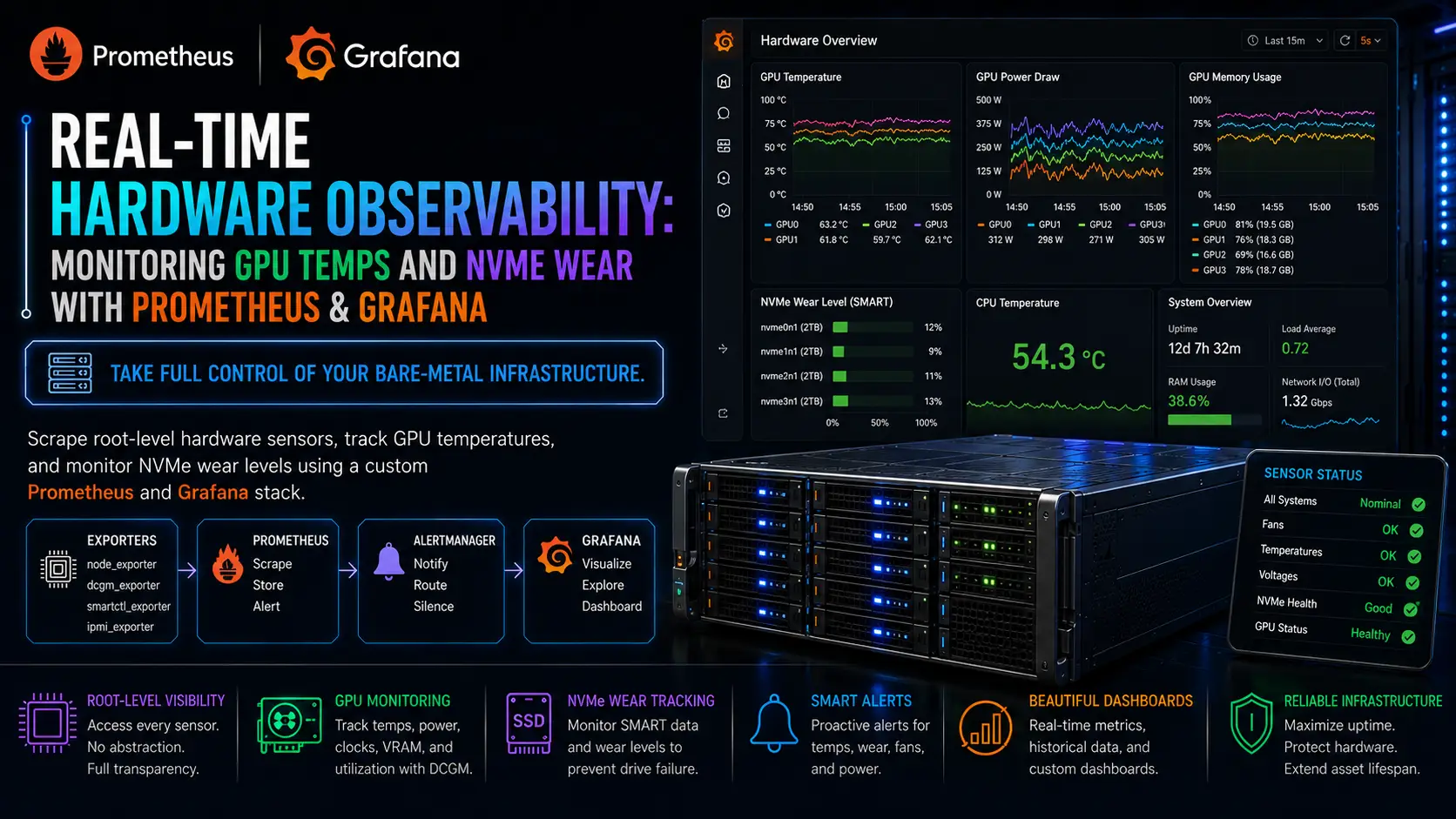
In this tutorial, we will build an enterprise-grade hardware observability stack. We will use Prometheus to scrape metric data, Grafana to visualize it, the NVIDIA DCGM Exporter to track GPU metrics (temps, power draw, VRAM usage), and the smartctl_exporter to monitor the exact wear leveling of your PCIe Gen 5 NVMe drives.
What You'll Learn
Step 1: Install Prometheus and Grafana
Step 2: Install Node Exporter (CPU & RAM)
Step 3: Install NVIDIA DCGM Exporter (GPU Metrics)
Step 4: Install smartctl_exporter (NVMe Wear Leveling)
Step 5: Update Prometheus Configuration
Step 6: Visualize in Grafana
Conclusion: Total Hardware Transparency
Step 1: Install Prometheus and Grafana
For ease of management, we will deploy the core Prometheus and Grafana services using Docker Compose. Ensure Docker and Docker Compose are installed on your Ubuntu 24.04 LTS server.
Create a directory for your observability stack:
mkdir -p ~/observability/prometheus
cd ~/observability
Create a basic Prometheus configuration file (prometheus/prometheus.yml) so the service can start. We will add our hardware targets to this later:
nano prometheus/prometheus.yml
Add the following:
global:
  scrape_interval: 15s

scrape_configs:
  - job_name: 'prometheus'
    static_configs:
      - targets: ['localhost:9090']
Now, create the docker-compose.yml file:
nano docker-compose.yml
Add the following configuration:
version: '3.8'
services:
  prometheus:
    image: prom/prometheus:latest
    volumes:
      - ./prometheus/prometheus.yml:/etc/prometheus/prometheus.yml
    command:
      - '--config.file=/etc/prometheus/prometheus.yml'
    ports:
      - "9090:9090"
    network_mode: "host" # Use host network to easily scrape local exporters

  grafana:
    image: grafana/grafana:latest
    ports:
      - "3000:3000"
    environment:
      - GF_SECURITY_ADMIN_PASSWORD=SuperSecretGrafanaPassword
    network_mode: "host"
Start the core stack:
sudo docker compose up -d
Step 2: Install Node Exporter (CPU & RAM)
To get baseline server metrics (CPU load, memory usage, disk I/O), we need the standard Prometheus Node Exporter. Since it needs root access to the host's /proc and /sys directories, it is best installed directly on the host OS.
Download and install Node Exporter:
cd /tmp
wget https://github.com/prometheus/node_exporter/releases/download/v1.7.0/node_exporter-1.7.0.linux-amd64.tar.gz
tar xvfz node_exporter-*linux-amd64.tar.gz
sudo mv node_exporter-1.7.0.linux-amd64/node_exporter /usr/local/bin/
Create a systemd service file:
sudo nano /etc/systemd/system/node_exporter.service
Add:
[Unit]
Description=Prometheus Node Exporter
After=network.target

[Service]
User=nobody
ExecStart=/usr/local/bin/node_exporter
Restart=always

[Install]
WantedBy=multi-user.target
Enable and start the service:
sudo systemctl daemon-reload
sudo systemctl enable --now node_exporter
Step 3: Install NVIDIA DCGM Exporter (GPU Metrics)
If you are renting an iDatam GPU Server, standard tools won't capture deep GPU metrics. You need NVIDIA's Data Center GPU Manager (DCGM).
Since we already have the NVIDIA Container Toolkit installed (from our previous AI tutorials), we can run the DCGM exporter as a Docker container.
Run the exporter, giving it access to all GPUs:
sudo docker run -d --gpus all --rm -p 9400:9400 \
  --name nvidia-dcgm-exporter \
  nvcr.io/nvidia/k8s/dcgm-exporter:3.3.0-3.2.0-ubuntu22.04
(This exposes highly detailed metrics—including Tensor Core utilization, memory temperatures, and PCIe bandwidth—on port 9400).
Step 4: Install smartctl_exporter (NVMe Wear Leveling)
NVMe drives have a finite lifespan measured in Terabytes Written (TBW). If you are running an I/O-heavy database, you must monitor the "Percentage Used" SMART metric to replace drives before they fail.
Install the smartmontools package:
sudo apt install smartmontools -y
Download the smartctl_exporter:
cd /tmp
wget https://github.com/prometheus-community/smartctl_exporter/releases/download/v0.11.0/smartctl_exporter-0.11.0.linux-amd64.tar.gz
tar xvfz smartctl_exporter-*.tar.gz
sudo mv smartctl_exporter-*/smartctl_exporter /usr/local/bin/
Because this exporter requires root privileges to read raw disk data via smartctl, create a root-level systemd service:
sudo nano /etc/systemd/system/smartctl_exporter.service
Add:
[Unit]
Description=Prometheus SMART Exporter
After=network.target

[Service]
User=root
ExecStart=/usr/local/bin/smartctl_exporter
Restart=always

[Install]
WantedBy=multi-user.target
Enable and start it:
sudo systemctl daemon-reload
sudo systemctl enable --now smartctl_exporter
(This exposes NVMe SMART metrics on port 9633).
Step 5: Update Prometheus Configuration
Now, we must tell Prometheus to scrape all three exporters we just set up.
Edit your prometheus.yml file:
nano ~/observability/prometheus/prometheus.yml
Append the new jobs under scrape_configs:
  - job_name: 'node_exporter'
    static_configs:
      - targets: ['localhost:9100']

  - job_name: 'nvidia_dcgm'
    static_configs:
      - targets: ['localhost:9400']

  - job_name: 'smartctl_nvme'
    static_configs:
      - targets: ['localhost:9633']
Restart the Prometheus container to apply the changes:
sudo docker restart observability-prometheus-1
Step 6: Visualize in Grafana
Your server is now successfully collecting thousands of hardware data points every 15 seconds. Let's visualize them.
-
Open your browser and navigate to Grafana at
http://YOUR_SERVER_IP:3000. -
Log in using
adminand the passwordSuperSecretGrafanaPassword(configured in Step 1). -
Go to Connections > Data Sources, select Prometheus, and enter
http://localhost:9090as the URL. Click Save & Test. -
Go to Dashboards > Import.
Instead of building dashboards from scratch, you can import pre-built, community-standard dashboards using their IDs:
-
For Node Exporter (CPU/RAM): Enter ID
1860and click Load. -
For NVIDIA DCGM (GPUs): Enter ID
12239and click Load. -
For NVMe SMART Data: Enter ID
10530and click Load.
You now have a mission-control command center displaying real-time power draw on your H100s, thermal throttling alerts for your CPU, and the exact percentage of life remaining on your Gen 5 NVMe arrays.
Conclusion: Total Hardware Transparency
Hardware failure in the enterprise space is inevitable; the key to maintaining 100% uptime is predictability. By monitoring your own hardware sensors at the bare-metal level, you can proactively migrate workloads or swap drives weeks before a catastrophic failure occurs.
This level of granular observability is simply impossible on managed cloud platforms that obscure hardware realities to protect their margins.
When you deploy your infrastructure on iDatam’s Unmetered Dedicated Servers, you aren't just renting compute power—you are taking ownership of the metal. Enjoy transparent, root-level hardware access, and monitor your infrastructure exactly how your DevOps team requires.
iDatam Recommended Tutorials

Control Panel
How to Fix Invalid cPanel License Error?
Find out how to fix the Invalid cPanel License error with this step-by-step guide. Resolve licensing issues quickly and get your hosting control panel back on track.


Control Panel
How to Install and Use JetBackup in cPanel
Learn how to install and use JetBackup in cPanel with this step-by-step tutorial. Discover how to back up and restore accounts, files, databases, and more efficiently.

Network
Remote Desktop Can’t Connect To The Remote Computer [Solved]
Learn how to fix the Remote Desktop can't connect to the remote computer error. Discover common causes such as network problems, Windows updates, and firewall restrictions, along with step-by-step solutions to resolve the issue and restore your remote desktop connection.
Discover iDatam Dedicated Server Locations
iDatam servers are available around the world, providing diverse options for hosting websites. Each region offers unique advantages, making it easier to choose a location that best suits your specific hosting needs.
