
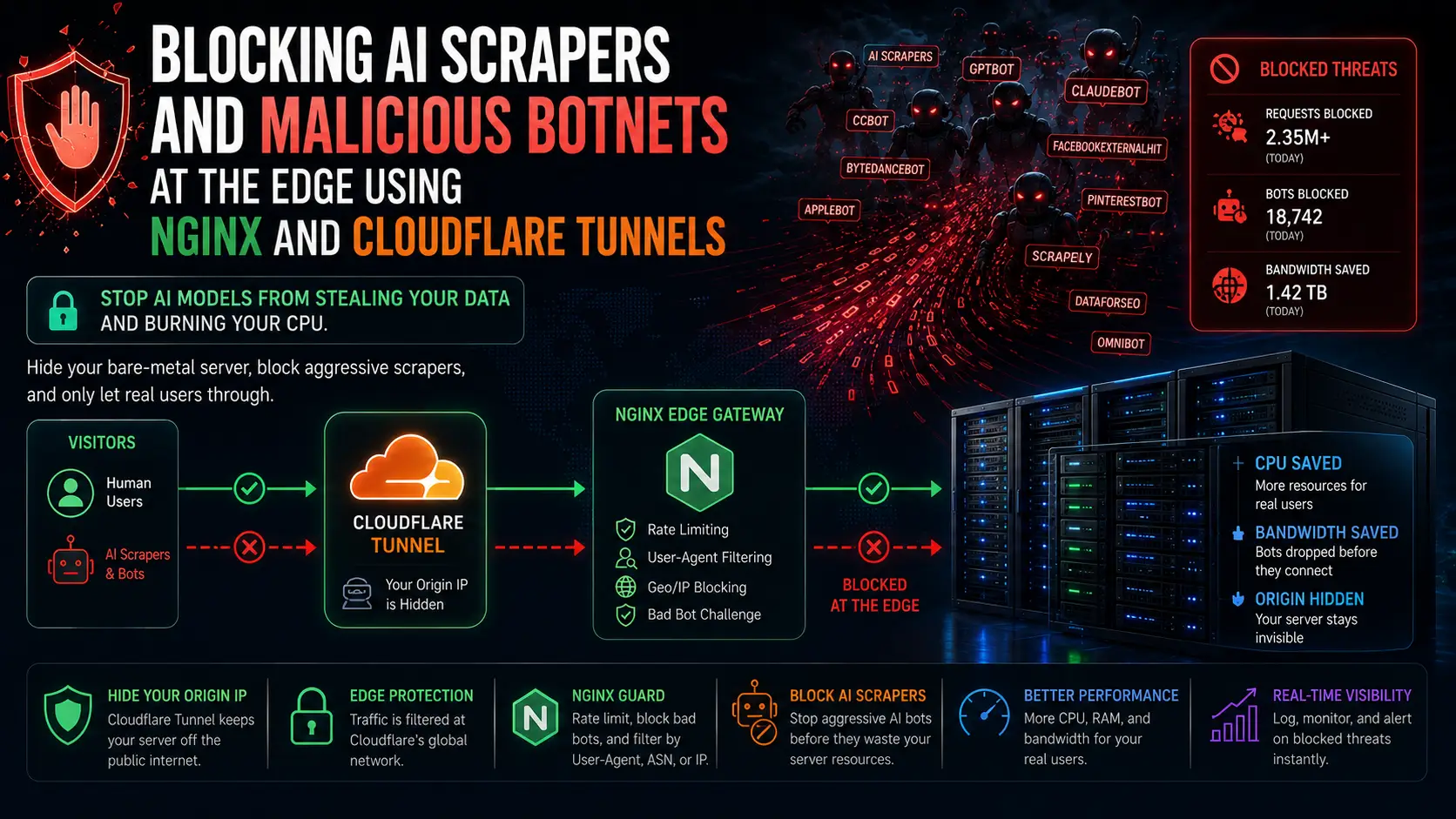
In 2026, the internet is facing an epidemic of rogue traffic. Tech giants and stealth AI startups are deploying massive, aggressive botnets to scrape every byte of text, image, and video data from your websites to train their Large Language Models.
If you host a popular forum, media site, or e-commerce platform, these scrapers will hammer your server with thousands of requests per second. While deploying your application on an iDatam Unmetered Dedicated Server guarantees you will never be charged egress fees for the terabytes of bandwidth these bots consume, your CPU and RAM are still being wasted processing their requests instead of serving your actual human customers.
You cannot rely on simple robots.txt files anymore; rogue bots ignore them. You need to enforce security at the edge.
In this tutorial, we will show you how to hide your bare-metal server's true IP address using Cloudflare Tunnels. Then, we will configure Nginx to act as a ruthless gatekeeper, utilizing strict rate-limiting and aggressive User-Agent blocking to instantly drop connections from known AI scrapers before they execute a single PHP or database query.
What You'll Learn
Step 1: Configure Nginx to Block AI Bots
Step 2: Install the Cloudflare Tunnel Daemon
Step 3: Authenticate and Create the Tunnel
Step 4: Route Traffic and Start the Tunnel
Step 5: Lock Down the Server (Zero-Trust)
Conclusion: Stop Paying the "Bot Tax"
Step 1: Configure Nginx to Block AI Bots
Before we expose the server to the internet, we need to harden Nginx. Connect to your bare-metal Ubuntu server via SSH and install Nginx:
sudo apt update && sudo apt install nginx -y
We will create a map of known AI scrapers. Edit the main Nginx configuration file:
sudo nano /etc/nginx/nginx.conf
Inside the http { ... } block, add the following map directive and rate-limiting zones:
http {
    # Existing configurations...

    # Map known AI bots and malicious crawlers
    map $http_user_agent $bad_bot {
        default 0;
        "~*GPTBot" 1;
        "~*ChatGPT-User" 1;
        "~*Anthropic-ai" 1;
        "~*ClaudeBot" 1;
        "~*CCBot" 1;
        "~*Bytespider" 1;
        "~*Amazonbot" 1;
        "~*meta-externalagent" 1;
    }

    # Define a rate limiting zone (10 megabytes of state memory, 5 requests per second per IP)
    limit_req_zone $binary_remote_addr zone=human_limit:10m rate=5r/s;
}
Now, apply these rules to your default server block:
sudo nano /etc/nginx/sites-available/default
Inside your server { ... } block, add the enforcement rules:
server {
    listen 80 default_server;
    listen [::]:80 default_server;

    root /var/www/html;
    index index.html index.htm index.nginx-debian.html;
    server_name _;

    # Drop connections instantly if it's a known AI bot
    if ($bad_bot) {
        return 444; # 444 closes the connection without sending headers
    }

    location / {
        # Apply the rate limit (allow a burst of 10 requests, delay anything above)
        limit_req zone=human_limit burst=10 nodelay;

        try_files $uri $uri/ =404;
    }
}
Test the configuration and restart Nginx:
sudo nginx -t
sudo systemctl restart nginx
Step 2: Install the Cloudflare Tunnel Daemon
If attackers know your server's true IP address, they will simply bypass Cloudflare and launch botnets directly at your open port 80 or 443. We are going to use Cloudflare Tunnels to create an outbound-only connection from your server to Cloudflare's edge.
Download and install the cloudflared package:
curl -L --output cloudflared.deb https://github.com/cloudflare/cloudflared/releases/latest/download/cloudflared-linux-amd64.deb
sudo dpkg -i cloudflared.deb
Step 3: Authenticate and Create the Tunnel
Note: You must have a domain name registered and pointing to a free Cloudflare account for this step.
Authenticate your server with Cloudflare. Run the following command:
cloudflared tunnel login
The terminal will provide a URL. Copy it, open it in your web browser, and log into your Cloudflare account to authorize the tunnel.
Once authorized, create the tunnel (we will name it idatam-shield):
cloudflared tunnel create idatam-shield
Take note of the Tunnel UUID output in the terminal, you will need it for the next step.
Step 4: Route Traffic and Start the Tunnel
Create the configuration file that tells Cloudflare where to send the traffic once it hits the edge.
sudo nano ~/.cloudflared/config.yml
Add the following configuration, replacing <Tunnel-UUID> with your actual UUID:
tunnel: <Tunnel-UUID>
credentials-file: /home/ubuntu/.cloudflared/<Tunnel-UUID>.json

ingress:
  - hostname: yourdomain.com
    service: http://localhost:80
  - service: http_status:404
Now, bind your domain name to the tunnel using DNS:
cloudflared tunnel route dns idatam-shield yourdomain.com
Install cloudflared as a system service so it automatically runs on boot:
sudo cloudflared service install
sudo systemctl start cloudflared
sudo systemctl enable cloudflared
Step 5: Lock Down the Server (Zero-Trust)
Right now, your website is accessible securely via yourdomain.com (which routes through the tunnel). But port 80 is still technically open to the public internet on your server's public IP.
We must close it to achieve true Zero-Trust. With a Cloudflare Tunnel, your server only makes outbound connections to Cloudflare. Therefore, you do not need any inbound web ports open.
Configure your ufw firewall:
sudo ufw default deny incoming
sudo ufw default allow outgoing

# Allow SSH so you don't lock yourself out
sudo ufw allow 22/tcp

# Ensure ports 80 and 443 are explicitly denied
sudo ufw deny 80/tcp
sudo ufw deny 443/tcp

sudo ufw enable
If a botnet or AI scraper finds your server's true IP address and tries to hit it, the packets will be silently dropped by the firewall. If they try to hit your domain name, Cloudflare will filter the worst of it, and your hardened Nginx rules will drop the remaining AI scrapers with a 444 code, saving your CPU.
Conclusion: Stop Paying the "Bot Tax"
By hiding your origin IP and enforcing strict rate limits at the local level, you have successfully insulated your web application from the AI scraping epidemic.
However, the reality of the 2026 internet is that automated traffic will always find a way to consume bandwidth. If you are hosting on a cloud provider like AWS or Google Cloud, you pay an egress fee for every gigabyte of data those bots pull from your server before your WAF drops them. This "bot tax" can cost thousands of dollars a month.
Protect your budget and your hardware. By deploying your web clusters on iDatam’s Unmetered Dedicated Servers, you pay a flat monthly rate regardless of how much bandwidth the internet tries to pull from you. Combine our unmetered pipes with smart, edge-level software protection, and keep your infrastructure focused exclusively on real users.
iDatam Recommended Tutorials

Control Panel
How to Fix Invalid cPanel License Error?
Find out how to fix the Invalid cPanel License error with this step-by-step guide. Resolve licensing issues quickly and get your hosting control panel back on track.


Control Panel
How to Install and Use JetBackup in cPanel
Learn how to install and use JetBackup in cPanel with this step-by-step tutorial. Discover how to back up and restore accounts, files, databases, and more efficiently.

Network
Remote Desktop Can’t Connect To The Remote Computer [Solved]
Learn how to fix the Remote Desktop can't connect to the remote computer error. Discover common causes such as network problems, Windows updates, and firewall restrictions, along with step-by-step solutions to resolve the issue and restore your remote desktop connection.
Discover iDatam Dedicated Server Locations
iDatam servers are available around the world, providing diverse options for hosting websites. Each region offers unique advantages, making it easier to choose a location that best suits your specific hosting needs.
