
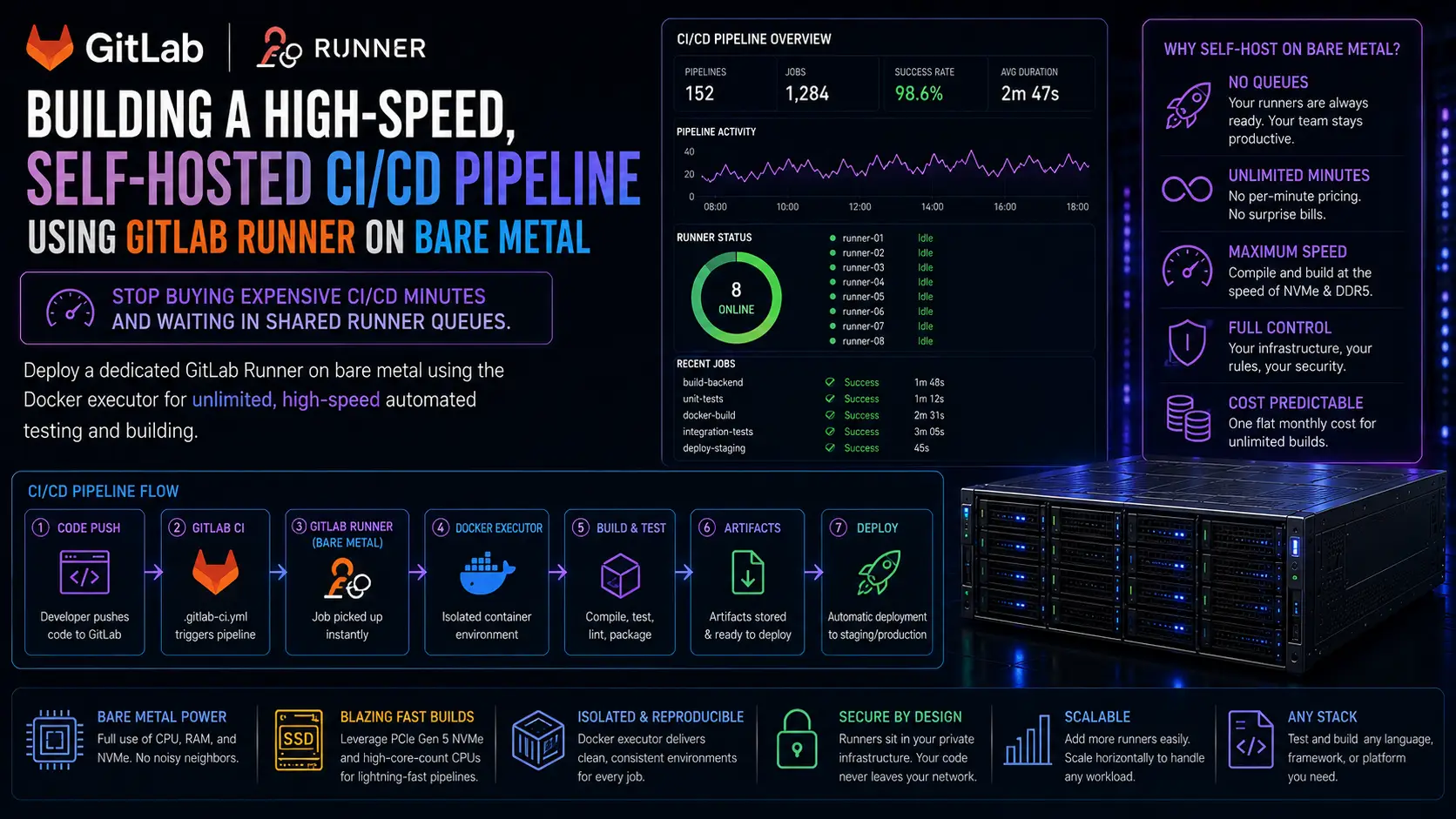
Modern software development relies entirely on Continuous Integration and Continuous Deployment (CI/CD). Every time your team pushes code, a pipeline spins up to run unit tests, compile binaries, and build Docker containers.
If you use GitLab SaaS or GitHub Actions, you rely on their "shared runners." At first, this is convenient. But as your team scales, two massive problems emerge:
-
The Queue: During peak office hours, your developers sit idle, waiting 10 minutes just for a shared runner to become available to test their code.
-
The Cloud Tax: If you are compiling large Rust binaries, building massive monolithic Docker images, or running AI model tests, you will burn through your "free CI/CD minutes" instantly. Buying additional minutes becomes a major recurring expense.
The solution is to bring your pipelines in-house. Compile your code at the speed of PCIe Gen 5 NVMe. Dedicate an entire multi-core AMD EPYC server from iDatam to your CI/CD pipeline and eliminate queue times and cloud minute limits forever.
By self-hosting a GitLab Runner using the docker executor on a raw bare-metal server, you get the perfect combination of absolute speed and clean, isolated, reproducible build environments.
What You'll Learn
Step 1: Install Docker on the Bare-Metal Host
Step 2: Install the GitLab Runner
Step 3: Register the Runner with GitLab
Step 4: Optimize for Parallel Execution and NVMe Speed
Step 5: Test the Unlimited Pipeline
Conclusion: Take Control of Your Development Cycle
Step 1: Install Docker on the Bare-Metal Host
To ensure every CI/CD job runs in a clean, reproducible environment, we will use the Docker Executor. This means the GitLab Runner will spin up a fresh Docker container for every single job, run the commands, and then destroy the container.
Connect to your fresh Ubuntu 24.04 LTS dedicated server via SSH and install Docker:
sudo apt update && sudo apt upgrade -y
sudo apt install docker.io -y
sudo systemctl enable --now docker
To ensure the GitLab Runner can interact with the Docker daemon without running into permission errors, verify that Docker is running smoothly:
sudo docker info
Step 2: Install the GitLab Runner
GitLab provides pre-compiled binaries for Linux. We will download the official AMD64 binary, make it executable, and install it as a system service.
Download the binary:
sudo curl -L --output /usr/local/bin/gitlab-runner https://gitlab-runner-downloads.s3.amazonaws.com/latest/binaries/gitlab-runner-linux-amd64
Give it execution permissions:
sudo chmod +x /usr/local/bin/gitlab-runner
Create a dedicated system user for the runner (for security best practices) and install the service:
sudo useradd --comment 'GitLab Runner' --create-home gitlab-runner --shell /bin/bash
sudo gitlab-runner install --user=gitlab-runner --working-directory=/home/gitlab-runner
sudo gitlab-runner start
Step 3: Register the Runner with GitLab
Now we need to link this bare-metal server to your GitLab repository.
-
Log into your GitLab account.
-
Navigate to your Project (or Group) > Settings > CI/CD.
-
Expand the Runners section.
-
Click New project runner.
-
Add a tag like
bare-metal-speedand click Create runner. -
GitLab will generate a Runner Authentication Token. Copy it.
Back on your server's terminal, run the registration command:
sudo gitlab-runner register
You will be prompted to answer a series of questions:
-
GitLab instance URL: Enter
https://gitlab.com/(or your self-hosted GitLab URL). -
Registration token: Paste the token you copied from the UI.
-
Description: Enter
iDatam Bare Metal AMD EPYC Runner. -
Tags: Enter
bare-metal-speed(this is how you tell your pipelines to use this specific server). -
Executor: Type
docker. -
Default Docker image: Type
ubuntu:22.04(oralpine:latest).
Step 4: Optimize for Parallel Execution and NVMe Speed
By default, GitLab Runner only processes one job at a time. If you rented a massive 64-core AMD EPYC server, running one job at a time is a terrible waste of resources. We need to unlock parallel execution.
Edit the GitLab Runner configuration file:
sudo nano /etc/gitlab-runner/config.toml
At the very top of the file, locate the concurrent setting. Change it from 1 to the number of simultaneous jobs your server can handle (e.g., if you have 32 threads and lots of RAM, you can safely set this to 16 or 32):
concurrent = 16
check_interval = 0
Next, scroll down to the [runners.docker] section. We want to ensure Docker leverages the speed of your NVMe drives and doesn't run out of memory during massive builds. Add or modify the shm_size (Shared Memory) if your build scripts rely on it:
 [runners.docker]
    tls_verify = false
    image = "ubuntu:22.04"
    privileged = false
    disable_entrypoint_overwrite = false
    oom_kill_disable = false
    disable_cache = false
    volumes = ["/cache"]
    shm_size = 2147483648 # Allocates 2GB of shared memory for heavy containers
Save the file and restart the runner to apply the new parallelization limits:
sudo gitlab-runner restart
Step 5: Test the Unlimited Pipeline
Your server is now listening for jobs. Let's force your code repository to use it.
In your GitLab project, create or edit your .gitlab-ci.yml file. You simply need to add the tags parameter to your jobs to ensure they route to your new iDatam server instead of the slow shared cloud runners.
stages:
  - build
  - test

compile_massive_app:
  stage: build
  image: node:20
  tags:
    - bare-metal-speed # This forces the job to use your new dedicated server!
  script:
    - echo "Compiling on bare metal..."
    - npm install
    - npm run build

run_heavy_tests:
  stage: test
  image: python:3.11
  tags:
    - bare-metal-speed
  script:
    - echo "Running heavy integration tests..."
    - pip install -r requirements.txt
    - pytest
Commit the file, and watch your CI/CD pipeline execute instantly without waiting in a queue.
Conclusion: Take Control of Your Development Cycle
You have successfully freed your software team from the constraints of cloud SaaS limits. By hosting your own GitLab Runner, you can execute thousands of parallel tests, build massive Docker images, and deploy code dozens of times a day—all for a fixed, predictable cost.
When developer time is your most expensive asset, every second spent waiting for a code compilation is money burned.
To give your engineering team the ultimate advantage, deploy your CI/CD pipelines on iDatam’s Dedicated Servers. Pair our massive multi-core AMD EPYC processors with PCIe Gen 5 NVMe arrays, and reduce your build times from 30 minutes to 3 minutes. Stop counting CI/CD minutes, and start shipping code.
iDatam Recommended Tutorials

Control Panel
How to Fix Invalid cPanel License Error?
Find out how to fix the Invalid cPanel License error with this step-by-step guide. Resolve licensing issues quickly and get your hosting control panel back on track.


Control Panel
How to Install and Use JetBackup in cPanel
Learn how to install and use JetBackup in cPanel with this step-by-step tutorial. Discover how to back up and restore accounts, files, databases, and more efficiently.

Network
Remote Desktop Can’t Connect To The Remote Computer [Solved]
Learn how to fix the Remote Desktop can't connect to the remote computer error. Discover common causes such as network problems, Windows updates, and firewall restrictions, along with step-by-step solutions to resolve the issue and restore your remote desktop connection.
Discover iDatam Dedicated Server Locations
iDatam servers are available around the world, providing diverse options for hosting websites. Each region offers unique advantages, making it easier to choose a location that best suits your specific hosting needs.
