
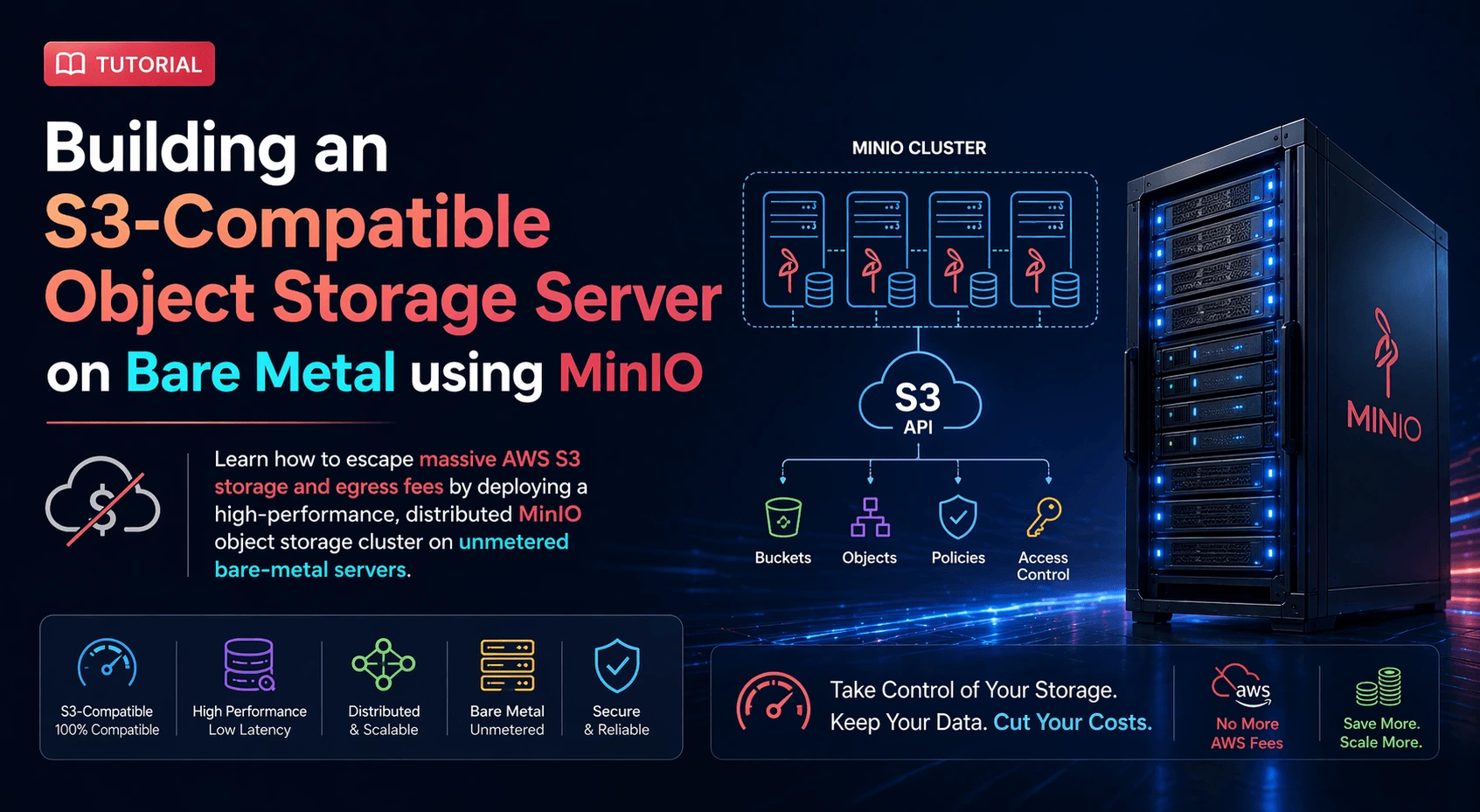
Storing petabytes of unstructured data—like machine learning datasets, massive media libraries, or enterprise backups—on Amazon S3 is incredibly convenient until you look at the monthly bill. While storing the data is expensive, moving that data out of the cloud for processing triggers massive "egress fees" that can cripple an IT budget.
The most powerful 2026 solution for Cloud Repatriation is MinIO. MinIO is an open-source, high-performance object storage server that is 100% API compatible with Amazon S3. By pointing your existing applications to a MinIO server instead of AWS, your developers won't even have to rewrite their S3 integration code.
By deploying a distributed MinIO cluster across iDatam’s Storage Dedicated Servers, you pair high-density NVMe storage with our unmetered 10Gbps or 100Gbps network uplinks. This means you can transfer massive AI training datasets as fast as physics allows, with absolute zero per-gigabyte bandwidth fees.
What You'll Learn
The Architecture Setup
Step 1: Prepare the Hardware and Network Environment
Step 2: Format and Mount the NVMe Storage Drives
Step 3: Install the MinIO Server Binaries
Step 4: Configure the Distributed MinIO Cluster
Step 5: Set Up MinIO as a Systemd Service
Step 6: Access the MinIO Console and Create S3 Buckets
The Architecture Setup
To build a highly available, distributed object storage cluster (which protects against drive and total server failures using Erasure Coding), MinIO requires a minimum of 4 drives. In this tutorial, we will use a robust 4-node bare-metal setup.
minio-node1 (10.0.0.11)
minio-node2 (10.0.0.12)
minio-node3 (10.0.0.13)
minio-node4 (10.0.0.14)
(Note: We assume you are running a fresh installation of Ubuntu 24.04 LTS on all nodes).
Step 1: Prepare the Hardware and Network Environment
Execute this step on all four nodes.
First, ensure your servers are updated.
sudo apt update && sudo apt upgrade -y
MinIO relies heavily on accurate hostname resolution to communicate across the internal network. Edit the /etc/hosts file on every server so they can locate each other:
sudo nano /etc/hosts
Add the following lines to the bottom of the file on all four nodes:
10.0.0.11 minio-node1
10.0.0.12 minio-node2
10.0.0.13 minio-node3
10.0.0.14 minio-node4
Step 2: Format and Mount the NVMe Storage Drives
Execute this step on all four nodes.
MinIO strongly recommends using the XFS file system for the underlying storage drives due to its performance with massive files.
Assuming your dedicated server has a raw, unformatted NVMe drive located at /dev/nvme1n1, format it using XFS:
sudo mkfs.xfs /dev/nvme1n1 -L MINIO_DATA
Next, create the mount point directory:
sudo mkdir -p /mnt/data1
To ensure the drive mounts automatically if the server reboots, add it to your /etc/fstab file:
echo 'LABEL=MINIO_DATA /mnt/data1 xfs defaults,noatime 0 2' | sudo tee -a /etc/fstab
Mount the drive immediately:
sudo mount -a
Step 3: Install the MinIO Server Binaries
Execute this step on all four nodes.
MinIO is distributed as a single, highly optimized binary file. Download the latest version directly from the official repository:
wget https://dl.min.io/server/minio/release/linux-amd64/minio
Make the binary executable and move it to the system binary directory:
chmod +x minio
sudo mv minio /usr/local/bin/
For security purposes, you should never run MinIO as the root user. Create a dedicated system user and group for the service:
sudo groupadd -r minio-user
sudo useradd -M -r -g minio-user minio-user
Transfer the ownership of your mounted NVMe drive to this new user:
sudo chown minio-user:minio-user /mnt/data1
Step 4: Configure the Distributed MinIO Cluster
Execute this step on all four nodes.
Create the MinIO configuration file directory and the file itself:
sudo mkdir /etc/minio
sudo nano /etc/default/minio
Add the following configuration. This exact configuration must be identical across all four servers.
# Volume locations for the distributed cluster.
# The {1...4} syntax tells MinIO to span across all 4 nodes.
MINIO_VOLUMES="http://minio-node{1...4}:9000/mnt/data1"

# Set the Root Access Key and Secret Key (These act as your AWS IAM Admin credentials)
MINIO_ROOT_USER="admin-minio-2026"
MINIO_ROOT_PASSWORD="SuperSecretStrongPassword!"

# The address to listen on for S3 API requests
MINIO_OPTS="--address :9000 --console-address :9001"
(Save and exit the file).
Step 5: Set Up MinIO as a Systemd Service
Execute this step on all four nodes.
To ensure MinIO runs in the background and starts on boot, we will configure a systemd service.
Download the official MinIO systemd script:
cd /tmp
wget https://raw.githubusercontent.com/minio/minio-service/master/linux-systemd/minio.service
Move it to the systemd directory:
sudo mv minio.service /etc/systemd/system/
Reload the system daemon, start the MinIO service, and enable it on boot:
sudo systemctl daemon-reload
sudo systemctl start minio
sudo systemctl enable minio
Verify that the cluster is healthy and running on all nodes:
sudo systemctl status minio
(You should see active (running) and a log message indicating that the server has started in distributed mode).
Step 6: Access the MinIO Console and Create S3 Buckets
Your massive, distributed object storage cluster is now online!
Open your web browser and navigate to the MinIO Console using any of your node IP addresses on port 9001: http://10.0.0.11:9001
Log in using the MINIO_ROOT_USER and MINIO_ROOT_PASSWORD you defined in Step 4.
From this beautiful Web GUI, you can:
Click Buckets to create your first S3-compatible bucket (e.g., ai-training-data).
Click Identity to generate Access Keys and Secret Keys for your developers.
Monitor your cluster's NVMe drive health and network throughput.
To connect your existing applications to this cluster, simply update their AWS S3 SDK configurations to point to your new endpoint (http://10.0.0.11:9000) and replace the AWS credentials with your newly generated MinIO keys.
Conclusion: Scale Without Limits
You have successfully built an enterprise-grade object storage cluster. Because of MinIO's erasure coding, you can safely lose an entire physical server without losing a single byte of your data.
As your data ingestion scales, avoiding network bottlenecks is critical. This is why enterprise architectures pair MinIO's highly parallel I/O capabilities with iDatam’s 100Gbps Dedicated Servers. By keeping your data on high-speed bare metal and routing it through unmetered pipes, you achieve faster-than-cloud performance while completely eliminating variable data egress costs.
iDatam Recommended Tutorials

Control Panel
How to Fix Invalid cPanel License Error?
Find out how to fix the Invalid cPanel License error with this step-by-step guide. Resolve licensing issues quickly and get your hosting control panel back on track.


Control Panel
How to Install and Use JetBackup in cPanel
Learn how to install and use JetBackup in cPanel with this step-by-step tutorial. Discover how to back up and restore accounts, files, databases, and more efficiently.

Network
Remote Desktop Can’t Connect To The Remote Computer [Solved]
Learn how to fix the Remote Desktop can't connect to the remote computer error. Discover common causes such as network problems, Windows updates, and firewall restrictions, along with step-by-step solutions to resolve the issue and restore your remote desktop connection.
Discover iDatam Dedicated Server Locations
iDatam servers are available around the world, providing diverse options for hosting websites. Each region offers unique advantages, making it easier to choose a location that best suits your specific hosting needs.
