
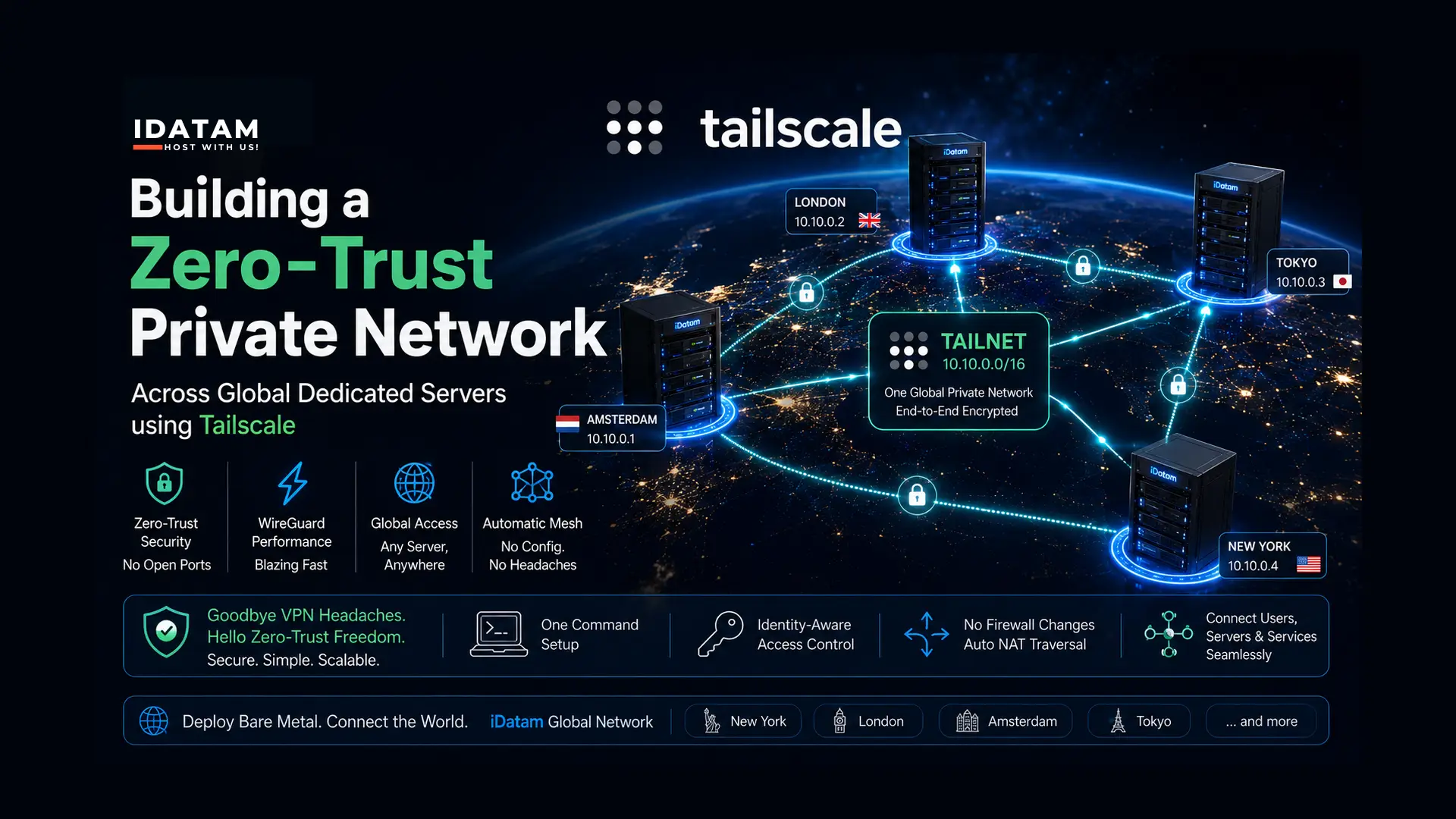
As your infrastructure scales globally, securing the communication between your servers becomes a logistical nightmare. Historically, linking a database server in Tokyo to an application cluster in London meant configuring complex Site-to-Site IPSec VPNs. You had to manage subnet overlaps, configure NAT traversals, open specific UDP ports, and pray that a firewall update didn't mysteriously drop the tunnel.
In 2026, enterprise engineers have abandoned legacy VPNs for Zero-Trust Networking. The undisputed leader in this space is Tailscale. Built on top of the hyper-fast WireGuard protocol, Tailscale creates a secure, peer-to-peer mesh network (a "Tailnet") between your machines. It punches through firewalls automatically, encrypts all traffic end-to-end, and assigns every server a static internal IP address—regardless of where it sits in the physical world.
By combining the software magic of Tailscale with iDatam’s global Dedicated Servers, you can deploy raw bare-metal power in Tokyo, London, and the US, and seamlessly link them into a single, private local area network in minutes.
What You'll Learn
The architecture of a peer-to-peer Tailscale mesh network.
Step 1: Install Tailscale on All Nodes
Step 2: Authenticate and Connect to the Tailnet
Step 3: Verify the Mesh Network and MagicDNS
Step 4: Lock Down the Public Firewall (UFW)
Conclusion: The Global Enterprise Backbone
The Global Architecture
For this tutorial, imagine you have provisioned three iDatam bare-metal servers across our global data centers:
-
Node 1: Tokyo, Japan (Asian Hub)
-
Node 2: London, UK (European Hub)
-
Node 3: New York, US (North American Hub)
Our goal is to lock down these servers so they can securely share database replication traffic and internal APIs, acting as if they are plugged into the same physical network switch.
Step 1: Install Tailscale on All Nodes
Execute this step on all three servers.
Connect to your Ubuntu 24.04/22.04 servers via SSH. Tailscale provides a highly convenient installation script that automatically adds the correct repository and installs the package.
Run the following command on Tokyo, London, and New York:
curl -fsSL https://tailscale.com/install.sh | sh
Tailscale installs incredibly fast. Once it finishes, it will register itself as a systemd service and start automatically in the background.
Step 2: Authenticate and Connect to the Tailnet
Execute this step on all three servers.
Now, you need to authenticate each server to your Tailscale account (which you can create for free using Google, Microsoft, or GitHub SSO at tailscale.com).
Run the "up" command to initialize the node:
sudo tailscale up
The terminal will output an authentication link that looks like this: To authenticate, visit: https://login.tailscale.com/a/1a2b3c4d5e
Copy that URL, paste it into your web browser, and log in. Once authenticated, the terminal on your server will return to the prompt. Your server is now part of your private mesh network!
Repeat this sudo tailscale up process for the other two servers.
Step 3: Verify the Mesh Network and MagicDNS
Tailscale automatically assigns a static, private 100.x.y.z IP address to every device on your Tailnet. Furthermore, it enables a feature called MagicDNS, which automatically registers the hostname of your server.
Log into your Tokyo server and check the status of the Tailnet:
tailscale status
You will see a list of your connected nodes (London and New York), their Tailscale IP addresses, and their active connection status.
Because of MagicDNS, you don't even need to memorize those IPs. From your Tokyo server, try pinging the London server using just its OS hostname:
ping london-server
The ping will succeed, routing securely over the encrypted WireGuard tunnel across the globe.
Step 4: Lock Down the Public Firewall (UFW)
Right now, your servers can talk over Tailscale, but their public network interfaces are still exposed to the internet. True Zero-Trust means dropping all public traffic and only accepting connections over the encrypted Tailscale interface (tailscale0).
CRITICAL WARNING: Before proceeding, ensure you have installed Tailscale on your local laptop and connected to the Tailnet. We are about to block public SSH access. You will only be able to SSH into your servers using their Tailscale IP addresses.
Log into each server (using its Tailscale IP) and configure ufw (Uncomplicated Firewall):
# Allow all traffic on the secure Tailscale interface
sudo ufw allow in on tailscale0

# (Optional but recommended) Allow outbound traffic
sudo ufw default allow outgoing

# Deny all other incoming traffic by default
sudo ufw default deny incoming

# Enable the firewall
sudo ufw enable
If you try to SSH into the server using its public IP address from an unauthorized device, the connection will drop. If you SSH into it using its 100.x.y.z Tailscale IP from your authenticated laptop, you will instantly connect.
Your servers are now dark to the public internet, but fully connected to each other.
Conclusion: The Global Enterprise Backbone
You have successfully replaced a convoluted IPSec architecture with a modern, zero-config WireGuard mesh. Your applications can now replicate databases, share internal APIs, and perform CI/CD deployments securely across continents.
However, a global software mesh is only as good as the physical fiber underneath it.
When you deploy your infrastructure on iDatam’s Global Dedicated Servers, you aren't just getting raw compute power. You are getting access to unmetered, high-throughput network uplinks in the world's most critical financial and technological hubs. Pair Tailscale's software-defined security with iDatam’s enterprise hardware, and build a truly borderless infrastructure without the egress fees.
iDatam Recommended Tutorials

Control Panel
How to Fix Invalid cPanel License Error?
Find out how to fix the Invalid cPanel License error with this step-by-step guide. Resolve licensing issues quickly and get your hosting control panel back on track.


Control Panel
How to Install and Use JetBackup in cPanel
Learn how to install and use JetBackup in cPanel with this step-by-step tutorial. Discover how to back up and restore accounts, files, databases, and more efficiently.

Network
Remote Desktop Can’t Connect To The Remote Computer [Solved]
Learn how to fix the Remote Desktop can't connect to the remote computer error. Discover common causes such as network problems, Windows updates, and firewall restrictions, along with step-by-step solutions to resolve the issue and restore your remote desktop connection.
Discover iDatam Dedicated Server Locations
iDatam servers are available around the world, providing diverse options for hosting websites. Each region offers unique advantages, making it easier to choose a location that best suits your specific hosting needs.
