
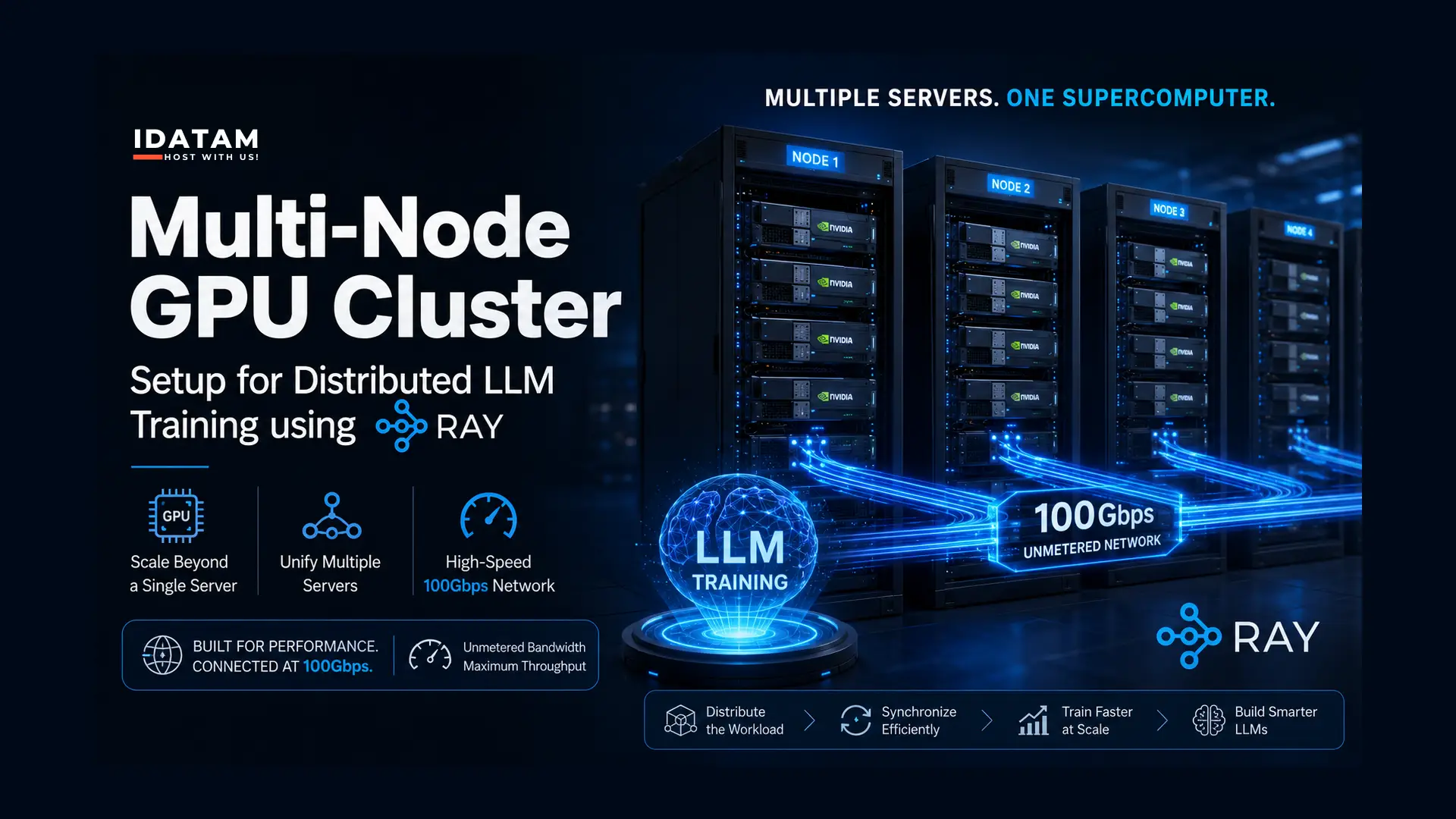
Training a Large Language Model (LLM) or fine-tuning a massive dataset eventually hits a hard wall: the physical limits of a single server. Even a top-tier machine packed with eight NVIDIA H100s will run out of VRAM when processing models nearing the 100-billion parameter mark.
When vertical scaling (buying a bigger server) is no longer an option, you must scale horizontally. You need to take 3 or 4 separate GPU servers and link them together so they act as one unified supercomputer.
The industry standard framework for orchestrating this distributed training is Ray. Developed by the team at Anyscale, Ray simplifies the complex math of dividing neural networks across multiple machines. However, setting up a Ray cluster on raw hardware is notoriously difficult.
In this definitive guide, we will show you exactly how to configure a multi-node GPU cluster using Ray on Ubuntu.
The Infrastructure Reality: Distributed training generates massive "east-west" network traffic as GPUs constantly synchronize their gradients. If you attempt this on a standard 10Gbps cloud network, your GPUs will spend 80% of their time waiting for data (GPU starvation). To actually achieve linear scaling, run this setup on an iDatam GPU Dedicated Server cluster connected via our unmetered 100Gbps backend network.
What You'll Learn
The architecture of a Ray cluster
Step 1: Network Configuration and SSH Keys
Step 2: Install Ray and PyTorch
Step 3: Initialize the Ray Head Node
Step 4: Attach the Worker Nodes
Step 5: Verify the Cluster and View the Dashboard
Step 6: Submitting a Distributed Training Job
Conclusion: The 100Gbps Necessity
The Cluster Architecture
For this tutorial, we will use three bare-metal Ubuntu 24.04 LTS servers, each equipped with NVIDIA GPUs.
-
Node 1 (10.0.0.11): The Ray "Head Node" (Orchestrates the cluster and runs the dashboard).
-
Node 2 (10.0.0.12): Ray "Worker Node".
-
Node 3 (10.0.0.13): Ray "Worker Node".
(We assume you have already installed the NVIDIA proprietary drivers and CUDA toolkit on all nodes. If not, see our PyTorch setup guide first).
Step 1: Network Configuration and SSH Keys
Execute this step on all three nodes.
Ray requires the nodes to communicate openly over the internal network. First, map the hostnames in the /etc/hosts file:
sudo nano /etc/hosts
Add the private IP addresses of your cluster:
10.0.0.11 ray-head
10.0.0.12 ray-worker1
10.0.0.13 ray-worker2
Generate SSH Keys on the Head Node: Ray needs passwordless SSH access to the worker nodes to automatically start and stop services. Log into Node 1 (ray-head) and generate an SSH key:
ssh-keygen -t rsa -b 4096
(Press Enter to accept the defaults and do not set a passphrase).
Copy this key to the worker nodes:
ssh-copy-id root@10.0.0.12
ssh-copy-id root@10.0.0.13
Step 2: Install Ray and PyTorch
Execute this step on all three nodes.
To ensure all nodes have the exact same software environment, we will use a Python virtual environment. Install the prerequisites:
sudo apt update
sudo apt install python3-pip python3-venv -y
Create and activate a virtual environment:
python3 -m venv ~/ray_env
source ~/ray_env/bin/activate
Install Ray (including the dashboard and tuning libraries) and PyTorch with CUDA support:
pip install "ray[default]" "ray[tune]" "ray[rllib]" "ray[serve]" torch torchvision torchaudio
Verify the Ray installation:
ray --version
Step 3: Initialize the Ray Head Node
Now we transform Node 1 into the orchestrator of the cluster. Log into Node 1 (ray-head), ensure your virtual environment is active, and run the following command to start the Ray Head process:
ray start --head --port=6379 --dashboard-host=0.0.0.0
-
--head: Tells this node it is the master. -
--port=6379: The default Redis port Ray uses for internal state management. -
--dashboard-host=0.0.0.0: Binds the Ray Dashboard to all network interfaces so you can view it from your web browser.
The terminal will output a success message containing a specific command that looks like this: ray start --address='10.0.0.11:6379'. Copy this exact command! You will need it for the worker nodes.
Step 4: Attach the Worker Nodes
Log into Node 2 (ray-worker1) and Node 3 (ray-worker2). Activate the virtual environment on both machines:
source ~/ray_env/bin/activate
Paste the command you copied from the Head Node:
ray start --address='10.0.0.11:6379'
If successful, the terminal will say Ray runtime started.
Step 5: Verify the Cluster and View the Dashboard
To prove the cluster is unified, go back to Node 1 (ray-head) and run a quick Python script to count the available GPUs. Open the Python shell:
python
Enter this code:
import ray
ray.init(address='auto')

# Print total cluster resources
print(ray.cluster_resources())
exit()
The output will show the combined CPU cores and the total number of GPUs across all three machines.
The Ray Dashboard: Open your web browser and navigate to the public IP of your Head Node on port 8265: http://<HEAD_NODE_PUBLIC_IP>:8265. Here, you can visually monitor the CPU utilization, GPU memory, and network throughput of every node in your new supercomputer.
Step 6: Submitting a Distributed Training Job
With the cluster online, you can now submit distributed PyTorch jobs using Ray Train. Instead of running a script directly, you use the ray job submit command from the Head Node. Ray will automatically copy your code to the worker nodes, divide the dataset, and synchronize the gradients during training.
ray job submit --working-dir ./my_ai_project -- python train_llm.py
Conclusion: The 100Gbps Necessity
You have successfully built a distributed GPU cluster. As you begin training massive models, watch the "Network" tab on your Ray Dashboard carefully.
During the backward pass of a neural network, the worker nodes must share gigabytes of gradient data instantly. If you built this cluster on standard 10Gbps hardware, you will see your GPU utilization drop to 20% while they wait for the network to catch up.
To prevent GPU starvation and ensure your AI training scales linearly, deploy your Ray cluster on iDatam’s 100Gbps Dedicated Servers. By connecting your NVIDIA nodes with unmetered, non-blocking 100Gbps fabrics, your distributed supercomputer will perform exactly as it was designed to.
iDatam Recommended Tutorials

Control Panel
How to Fix Invalid cPanel License Error?
Find out how to fix the Invalid cPanel License error with this step-by-step guide. Resolve licensing issues quickly and get your hosting control panel back on track.


Control Panel
How to Install and Use JetBackup in cPanel
Learn how to install and use JetBackup in cPanel with this step-by-step tutorial. Discover how to back up and restore accounts, files, databases, and more efficiently.

Network
Remote Desktop Can’t Connect To The Remote Computer [Solved]
Learn how to fix the Remote Desktop can't connect to the remote computer error. Discover common causes such as network problems, Windows updates, and firewall restrictions, along with step-by-step solutions to resolve the issue and restore your remote desktop connection.
Discover iDatam Dedicated Server Locations
iDatam servers are available around the world, providing diverse options for hosting websites. Each region offers unique advantages, making it easier to choose a location that best suits your specific hosting needs.
